Showing posts with label SSRS. Show all posts
Showing posts with label SSRS. Show all posts
Saturday, 14 April 2012


Tuesday, 21 February 2012
Display Database Image using RS 2008
Select the Reporting Services image component from the Toolbox and drag and drop into an emptytablix column.
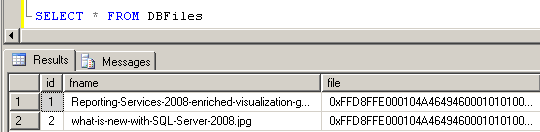
Following are store image in binary form:
This action will trigger the Reporting Services Image Properties Wizard.
You can later alter the properties of the image cell by a click on the image properties menu item on the context menu of the image cell.
You can later alter the properties of the image cell by a click on the image properties menu item on the context menu of the image cell.
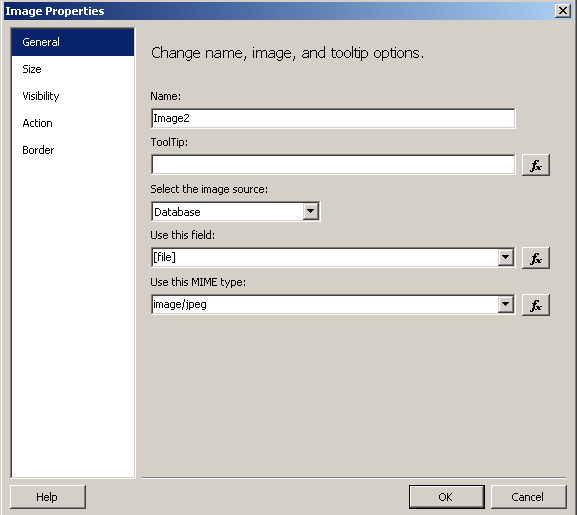
Set the image properties as follows :
1) Set the image source as database, since we are selecting the image in binary format from database using reporting services dataset.
2) When database is chosen as the source of the image, you will select the field name as [file] field of the dataset in the Use this field dropdown list.
3) Also as the last step select the MIME type as image/jpeg (or which is approtiate for your case)
1) Set the image source as database, since we are selecting the image in binary format from database using reporting services dataset.
2) When database is chosen as the source of the image, you will select the field name as [file] field of the dataset in the Use this field dropdown list.
3) Also as the last step select the MIME type as image/jpeg (or which is approtiate for your case)
Resize Database Image and Size Properties of the SQL Database Image
You can also set the size properties of the database image and image component within the tablixcomponent by displaying the image properties and navigating to the Size tab.
There you can select one of the following size properties for display database images.
Original size
Fit to size
Fit proportional
Clip
There you can select one of the following size properties for display database images.
Original size
Fit to size
Fit proportional
Clip
Repeat Header / Keep Header Visible in Tables in RS 2008
If a report with a table is created using the wizard feature (In Solution Explorer, right click on Reports --> Add New Report) Table Headers will repeat on every page.
Instead if a report is created without using the wizard (In Solution Explorer, right click on Reports --> Add --> New Item) Table Headers will not repeat on every page. Setting Repeat Header (Rows/Columns) on each Page for the Tablix will not help either
if you are using a "table"-style layout:
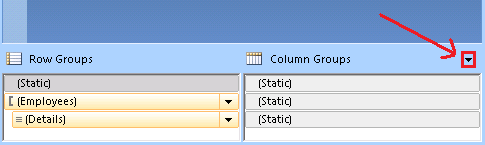
- in the grouping pane, click on
the small triangle and select "Advanced Mode"
to show static members:
- verify that you have the properties grid
turned on (in BI Development Studio use F4, in Report Builder go to the
"View" tab and select "Properties")
- select the corresponding (static) item in
the row group hierarchy
- in the properties grid:
- set KeepWithGroup to After
- set RepeatOnNewPage to true for repeating headers
- set FixedData to true for keeping headers visible
Thursday, 25 August 2011

SSRS 2005 ReportViewer is 'Shrinking' my Reports
I've found the solution to SSRS shrinking my reports. For reference, you have to do three things
- Delete the declaration from my hosting aspx page
- Set the Report Viewer's AsyncRendering property to false.
- Set the Report Viewer's Width property to 100%
Apparently there is a bug in SSRS 2005 with its XHTML rendering engine which is now fixed with the engine rebuild in SSRS 2008.
Saturday, 16 July 2011
Repeat Tablix Row Header on each page (SSRS 2008)
Sql Server Reporting Service :

We need to take some additional steps to make this working in SSRS 2008 and the primary reason is the Table structure has been changed in SSRS 2008. Now we have “Tablix” in place of “Table” which is the combination of Table and Matrix.
Here are the steps needed to make sure Tablix Row header is shown is each page.
1. Even though the Tablix has Row/Column header properties in the property pane but this does not work especially when the row grouping is used in Tablix.

2. In order to make sure that the Tablix row header is repeated in each page, we need to go the Advance Mode settings of Tablix.
In the bottom of Report Designer-->Under Groupng Pane-->Column Group-->Click on Advance Mode

3. In the Row Groups pane, click the static member of the row you need to repeat.
4. When we select the Static Member, the corresponding cell in the Tablix will be selected. If this confirms the cell which needs to be repeated, go to the properties of this Static Member.
5. Set the KeepWithGroup property
a) For a Static row that is above a group, select “After”
b) For a Static row that is below the group, select “Before” if the Static Row is below the Group.
6. The last thing would be to set the RepeatOnNewPage property “True”


For more details please see the below msdn article.
http://msdn.microsoft.com/en-us/library/cc627566.aspx
Subscribe to:
Posts (Atom)